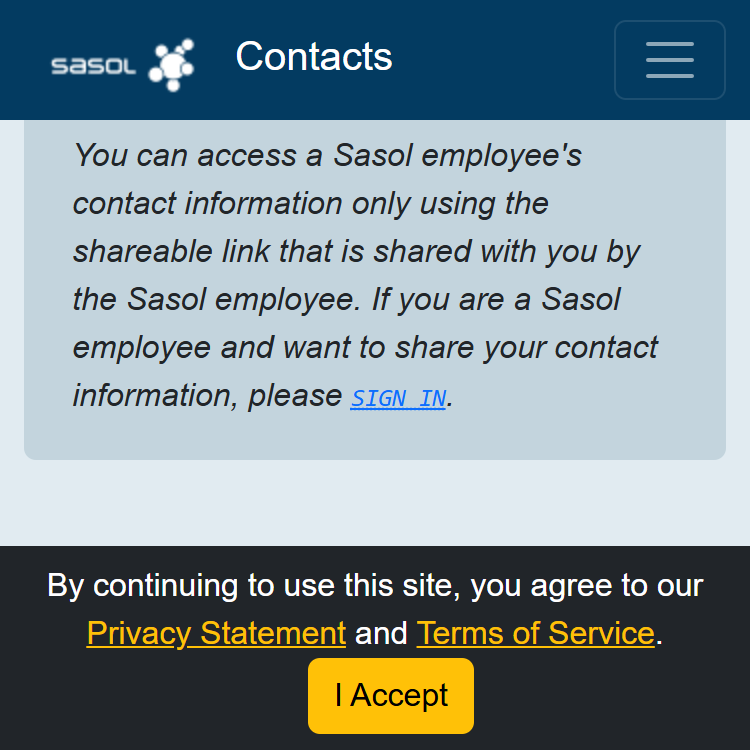
Screenshot of the 'Sign In' link on the homepage
Click on the Sign In link located on the homepage.
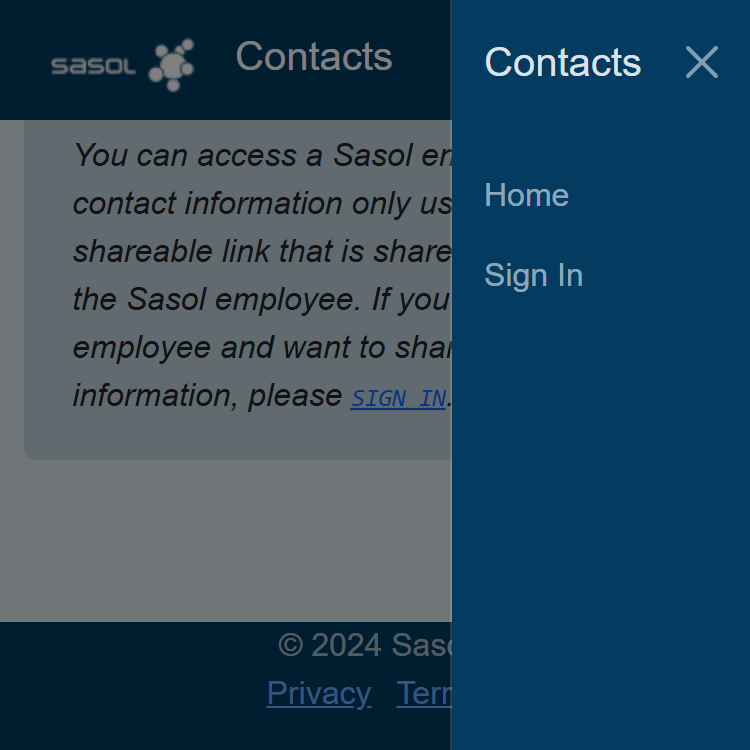
Screenshot of the 'Sign In' link on the navigation menu
Or use the Sign In link located in the navigation menu.
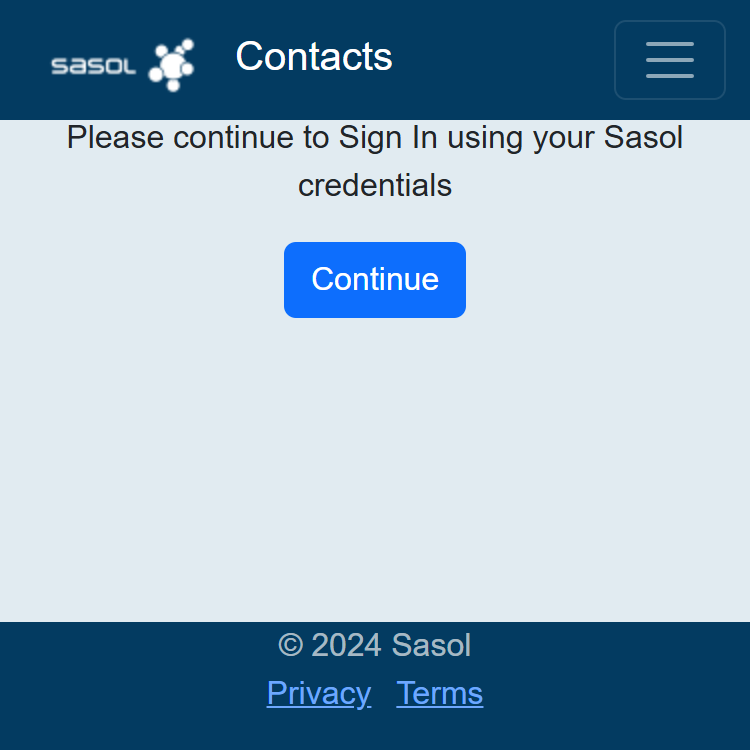
Screenshot of the 'Continue' link for proceeding with authentication
If your a Sasol Employee, click Continue to proceed to enter your Sasol Credentials.
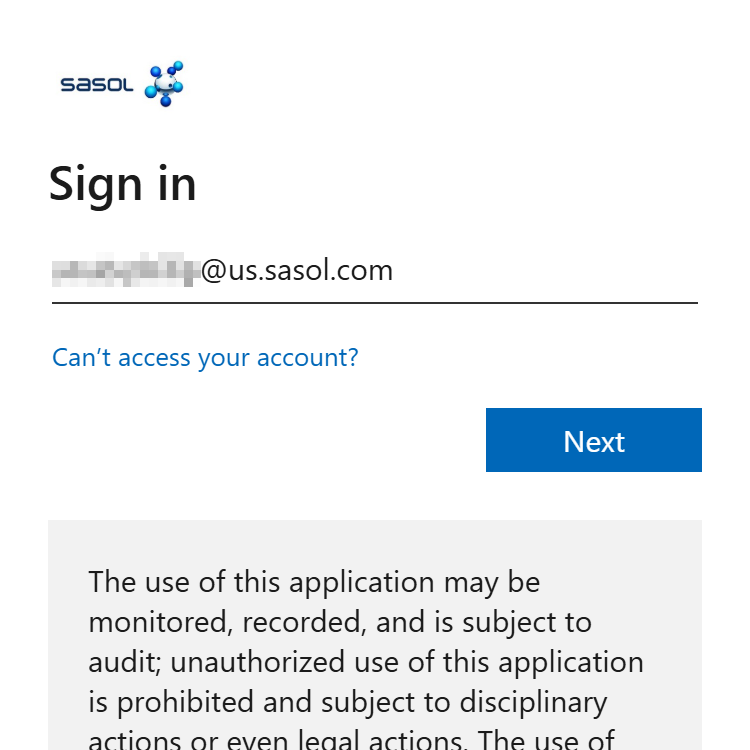
Screenshot of the 'Sign In' page
Proceed signing in using your Sasol Email address.
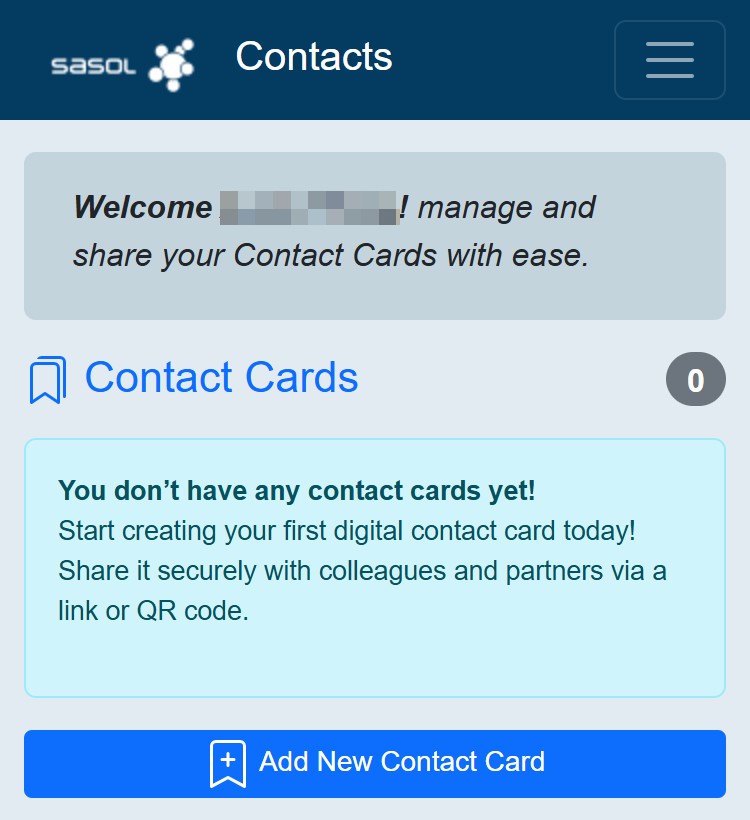
Screenshot of the 'Dashboard' page
After signing in, you’ll be directed to your Dashboard.

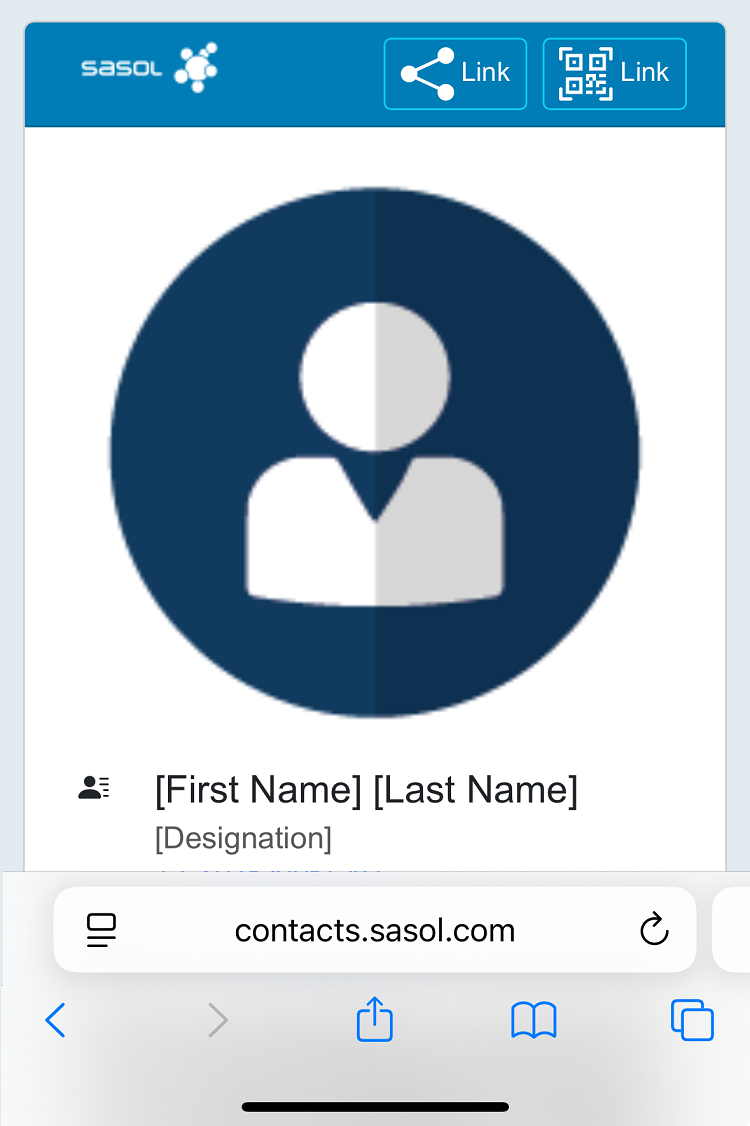
Screenshot of a Contact Card open in Safari
Open the Contact Card in Safari on your iPhone.

Tap the Share button in Safari’s toolbar (a box with an upward arrow).
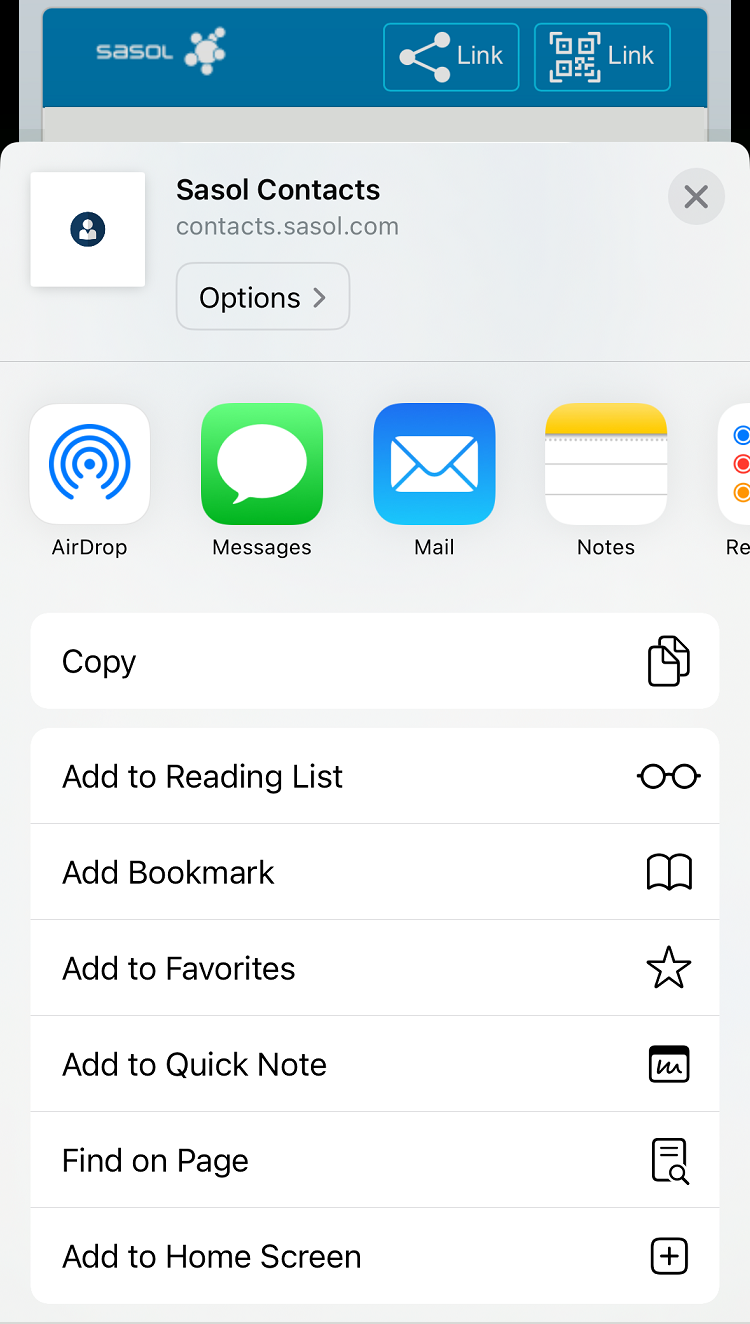
Screenshot of the Add to Home Screen option
Scroll down in the Share menu and tap Add to Home Screen.
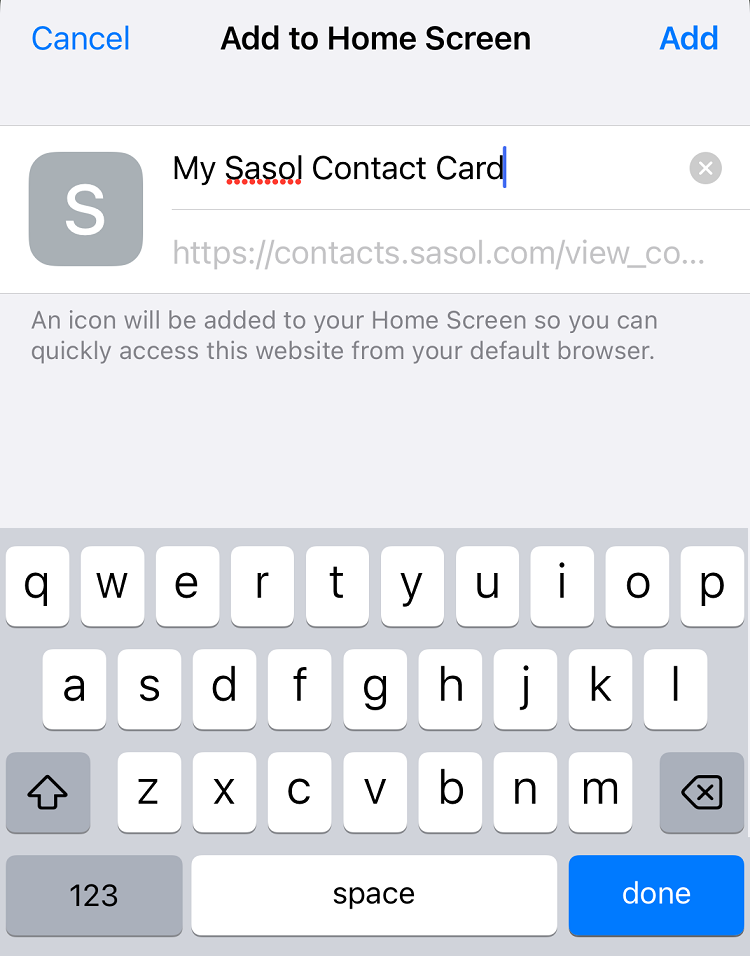
Screenshot of the Add to Home Screen confirmation
Enter a name for the Contact Card icon (e.g., the contact’s name) and tap Add in the top-right corner.
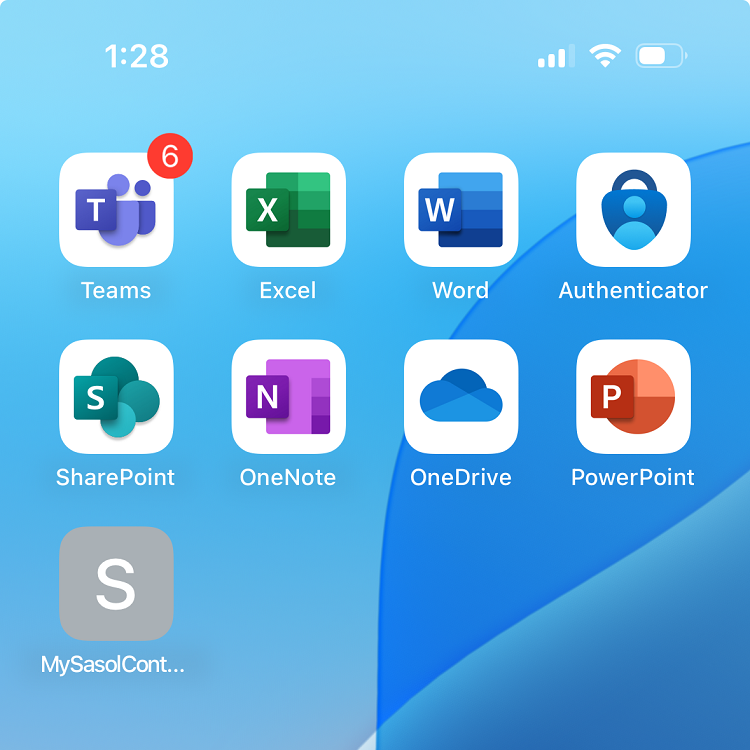
Screenshot of the iPhone Home Screen with the Contact Card icon
The Contact Card will appear as an icon on your iPhone Home Screen for quick access.

Note: Adding a Contact Card to your Home Screen creates a shortcut to the Contact Card’s webpage in Safari. An internet connection is required to access the Contact Card when tapping the icon.
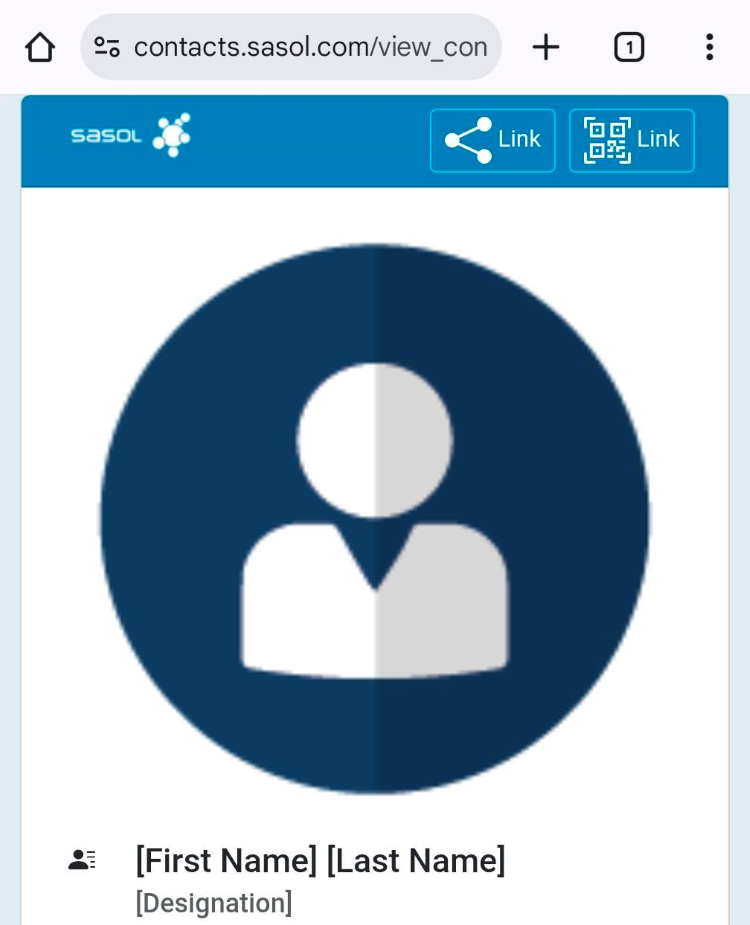
Screenshot of a Contact Card open in Chrome
Open the Contact Card in Chrome on your Android device.

Tap the Menu button (three vertical dots) in the top-right corner of Chrome.
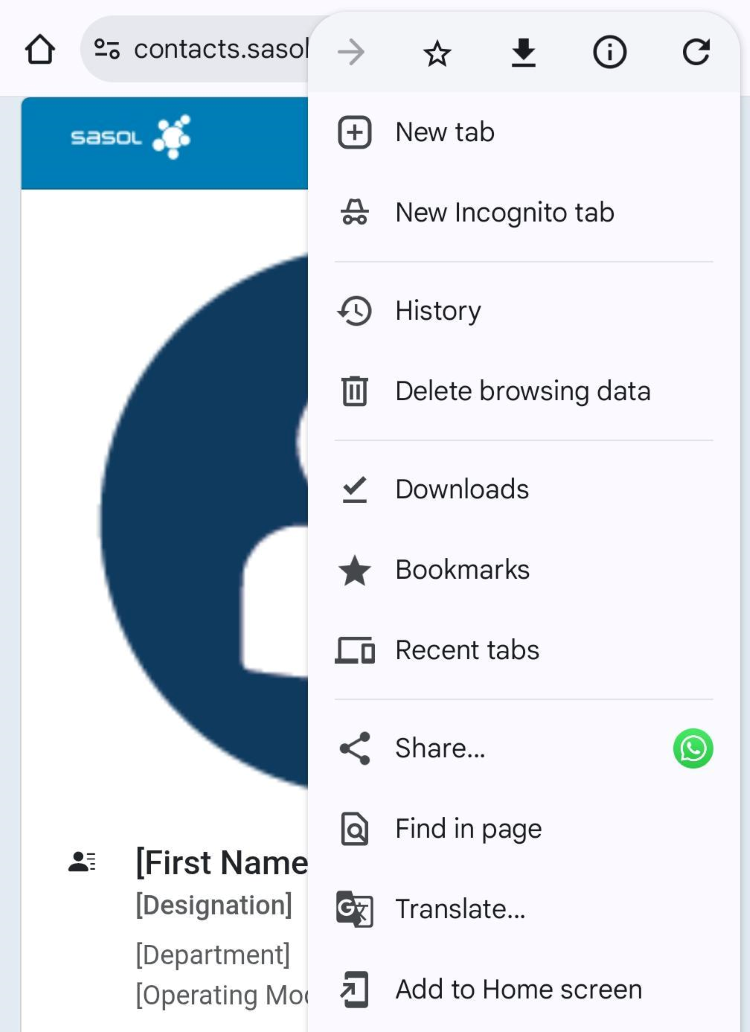
Screenshot of the Add to Home screen option
Select Add to Home screen from the menu.
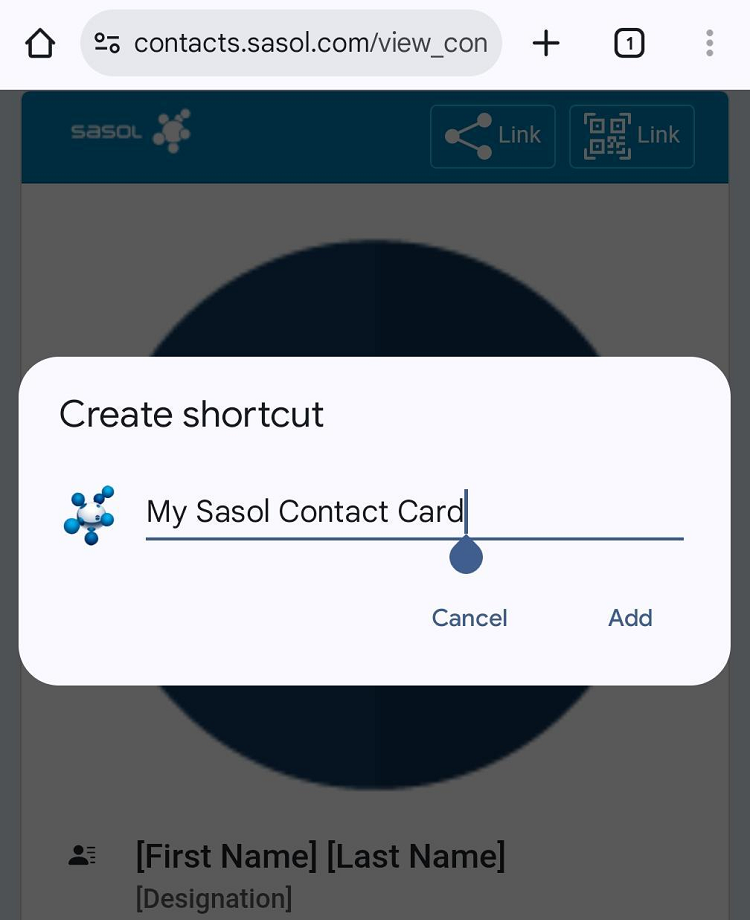
Screenshot of the Add to Home screen confirmation
Enter a name for the Contact Card icon (e.g., the contact’s name) and tap Add.
Screenshot of the Android Home Screen with the Contact Card icon
The Contact Card will appear as an icon on your Android Home Screen for quick access.

Note: Adding a Contact Card to your Home Screen creates a shortcut to the Contact Card’s webpage in Chrome. An internet connection is required to access the Contact Card when tapping the icon.
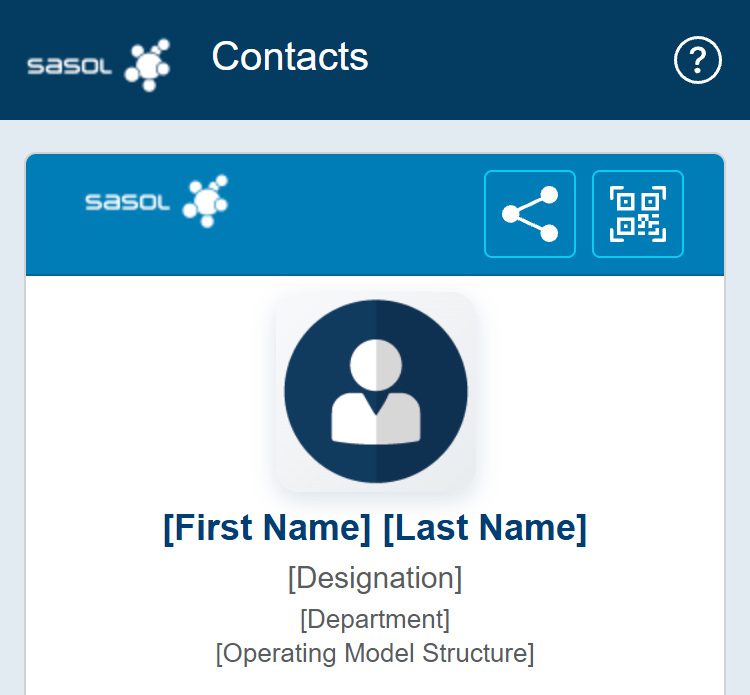
Screenshot of the 'Contact Card'
Profile Picture
Tap the profile picture to expand it for a larger view. Tap again to collapse.

Header Buttons
Share - Share the contact card link via your device's share options.

QR Codes - Opens the QR code panel with two options.
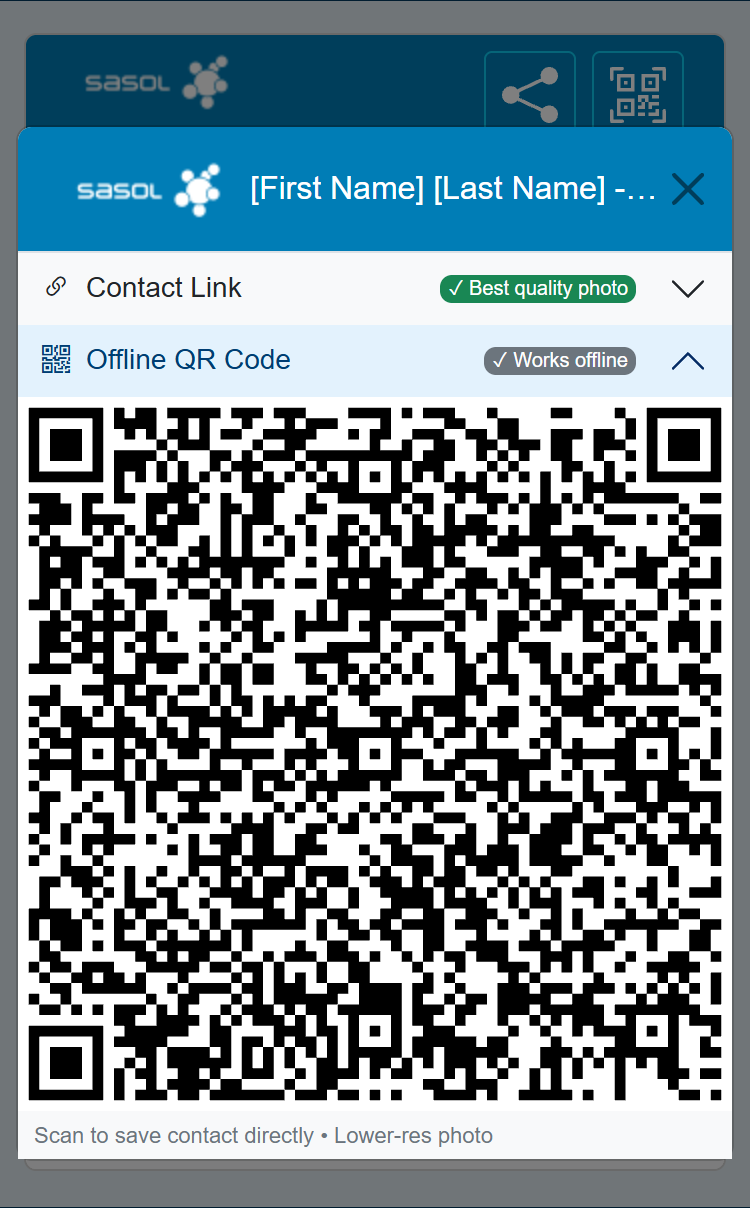
Screenshot of the 'Contact Card'
QR Code Options
Tap the QR button to open a panel with two QR code options:

Contact Link Recommended
Scan to open the contact card in a browser.
• Requires internet connection
• High quality profile photo


Offline QR Code
Scan to save contact directly to phone.
• Works without internet
• Lower resolution photo
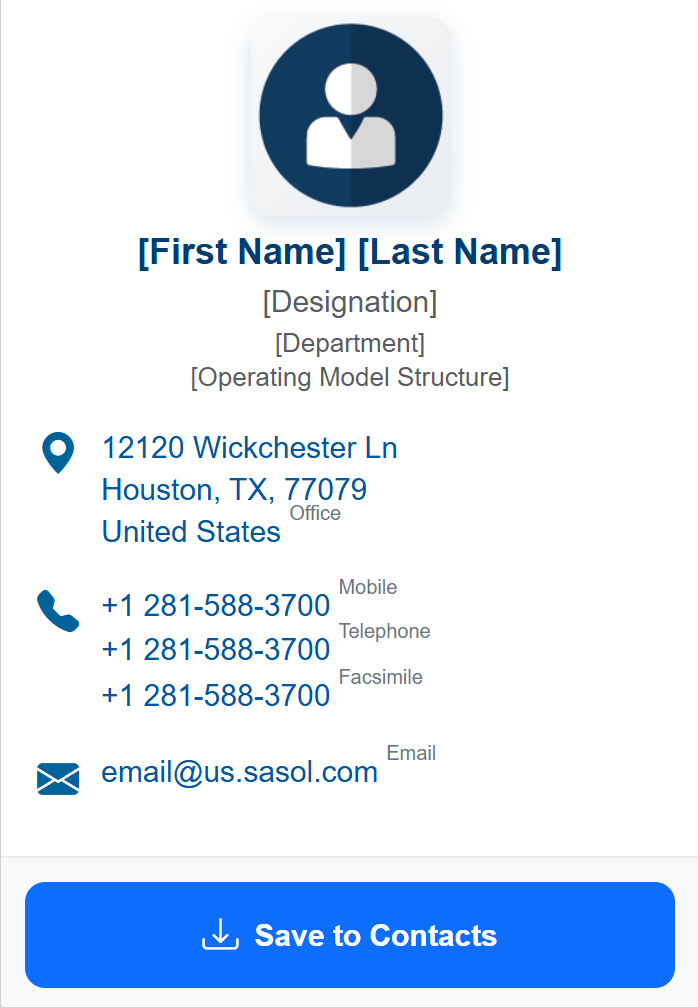
Screenshot of the 'Contact Card'
Contact Details
Tap the address to open in Maps.
Tap a phone number to place a call.
Tap the email to compose an email.

Save Contact
Tap the Save to Contacts button at the bottom of the card to download and save this contact to your phone.

If you have any questions, concerns, or need to report an issue,
please contact us at
By continuing to use this site, you agree to our Privacy Statement and Terms of Service.